SEO/GEO
Audit your website, improve its content and understand visibility in Google and AI answers.
SiteOS SEO/GEO brings technical audits, content checks, search research and AI visibility into your Project. Find a problem, open its evidence, prepare an improvement with your team or AI agent, then check the published result.
SEO concerns search-engine visibility. GEO means generative engine optimization: how your brand appears in AI-generated answers. Technical discoverability, Google search performance and sampled AI answers provide different kinds of evidence.
Start with your website
- Select your Organization, Project and environment. Confirm its website URL in Project settings.
- Open SEO/GEO and choose the tool you need. If this environment is not connected yet, use its setup action.
- Read an existing report or start a check for that website. Opening a page does not run checks or consume credits.
Public-page audits and external research need neither a website script nor a Google connection. Connect Google Search Console only when you want your own Google search data and indexing reports.
Choose a workflow
The sidebar groups these tools under Overview (Dashboard and Opportunities), My site (Site Audit and Search Console), Google search (Keyword research, Rank tracking, Domain Overview and Backlinks) and AI search (Brand lookup, Prompt checks and AI Visibility). Audit settings and notifications are under Manage.
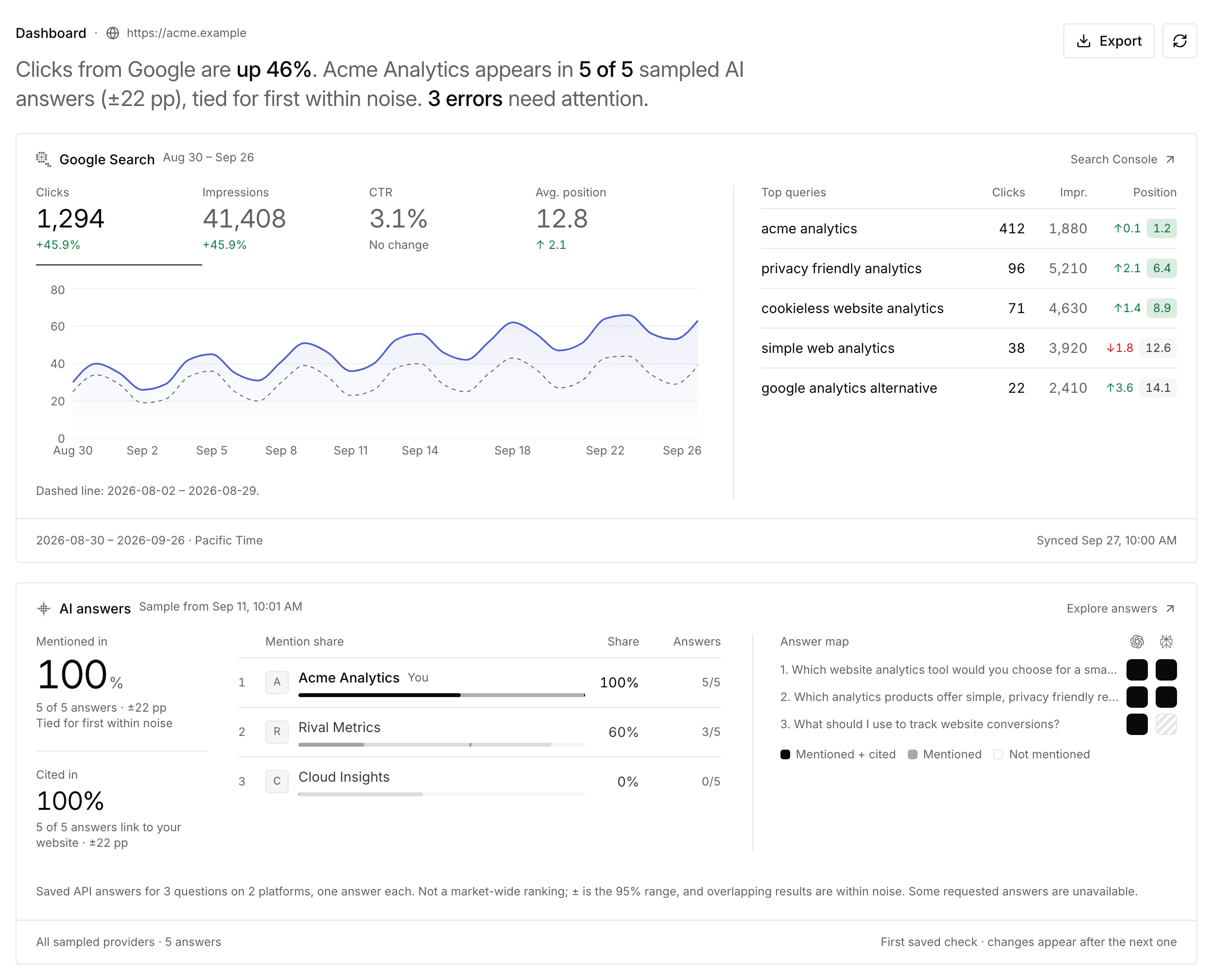
The Dashboard brings saved results together: site health, Google Search performance, keyword positions and AI answers, followed by the top three Opportunities. Each report keeps its own date, scope and coverage; an unfinished or unavailable check is not a passed check.
Work with several websites
Add each website as its own Project in your Organization. SEO/GEO is connected to each Project environment separately, so every website keeps its own:
- site audits, audit schedule and notifications;
- Search Console property and Google reports;
- keyword sets, rank tracking and competitors;
- AI Visibility question sets, schedules and action plans;
- Opportunities, built only from that website's reports.
Switch between websites from Projects or the sidebar, and pin the ones you work on most. Members, Organization notification destinations and the free monthly SEO credits are shared by all of its Projects. Staging and development websites use their own environments, so their checks never change Production reports.
Your AI agent works with the same Projects. The CLI keeps one Project and environment selection per repository, and MCP reads saved reports for the Projects in the Organizations you authorize.
Free monthly credits
All check types are available without a paid subscription. New external research, AI Visibility checks (manual or automatic), tone analysis, AI content checks and AI-generated action plans use the Organization's free monthly SEO credits. They renew every month, during early access and beyond, and are shared across its Projects, environments and team members.
Technical audits, Performance, connected Search Console reports and Google indexing checks do not use research credits. Reading saved results, preparing repair briefs and exporting reports do not spend credits either. See Usage & limits in the application and Usage for the available balance, reserved credits and renewal date. Free access still has usage and technical limits. To compare these tools with paid SEO suites, see the SEO / GEO product page and SiteOS vs Semrush.
Work with your agent
Choose what to fix first
Start with Opportunities under Overview in the SEO/GEO sidebar. It ranks next steps from the reports this environment already has and shows the evidence behind each one:
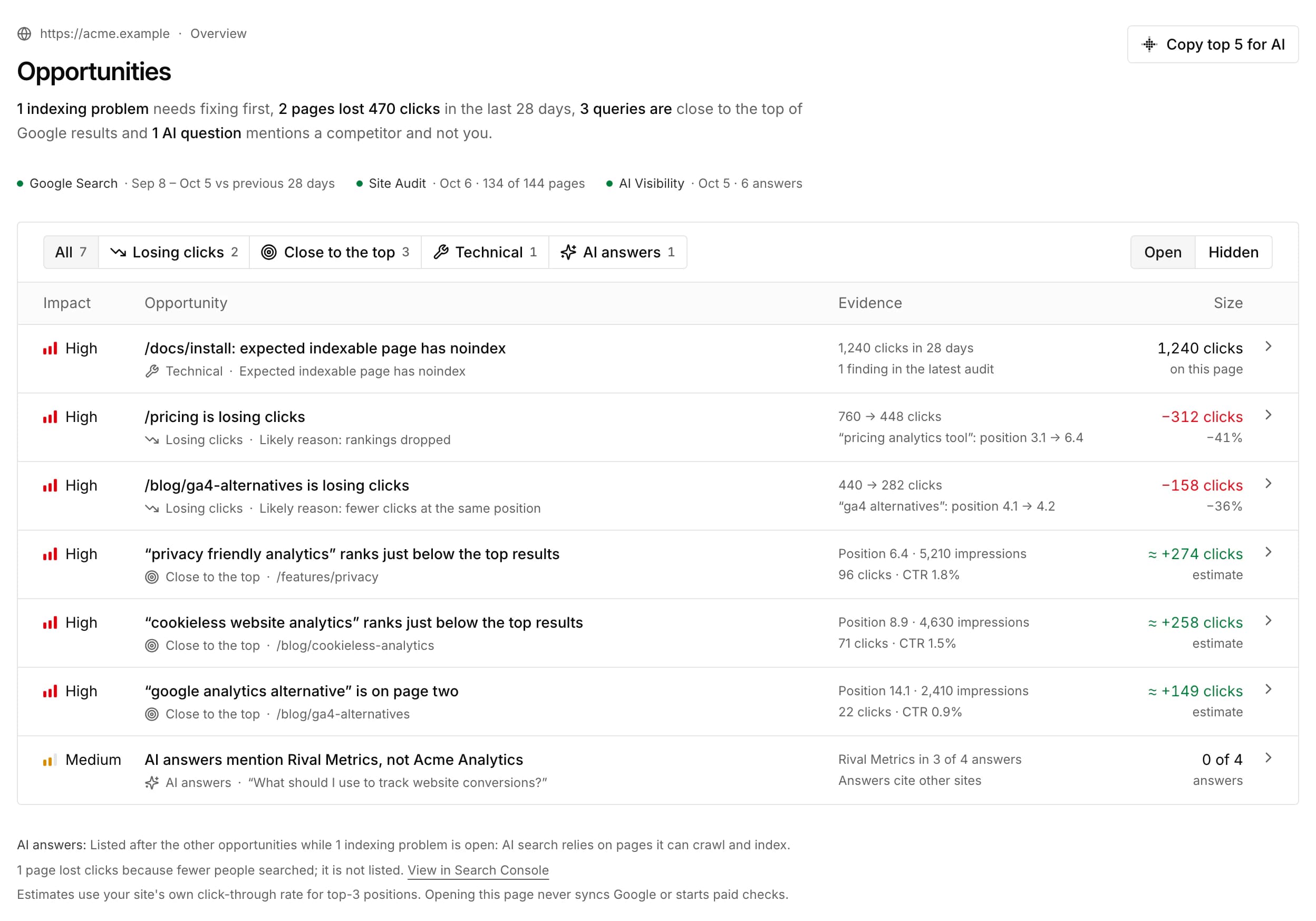
A lost-clicks item names its likely reason, such as dropped rankings, fewer clicks at the same position or clicks moving to another page of your website. Pages that only lost clicks because people searched less are counted separately rather than listed.
A low click-through item asks you to check the live results page: a title and description that do not answer the search can be rewritten, but an AI Overview, ads or other results above your listing can also take the clicks. A competing pages item lists each page's share of the impressions; choose the page that should rank, then merge and redirect, set a canonical, or make each page's purpose clearer. A publishing pace item suggests improving existing pages first and adding about three or four genuinely useful pages a week. It is guidance and never blocks publishing.
An AI answers item names the products the answers mention, including every competitor tied for the most mentions, and the date of the AI Visibility check. It counts how many answers cite your domain, a tracked competitor or another site, lists up to five of the most-cited pages under Pages these answers cite, and bases its next step on those sources: Your page is cited, not named, Answers cite other sites, Answers cite competitor pages or No sources listed. A cited link is an observation, not proof that it shaped the answer.
Branded searches are told apart by the brand terms in SEO/GEO settings → Brand terms. Until you save your own list, SiteOS suggests terms from the Project name, the website's domain and the product names in AI Visibility. Terms match whole words, with or without spaces or hyphens. Opportunities shows branded and non-branded clicks separately, and leaves direct searches for tracked competitors out of its estimates.
Each item has a High, Medium or Low impact based on the clicks involved. Indexing blockers come first within a level. AI answers are never High because they are samples; low click-through and competing pages are never High either, and publishing pace is always Low. Click gains are estimated from your site's own non-branded click-through rate in the top 3, or from a conservative rate until there is enough data; they are not forecasts.
Open an item for its evidence and next step. Copy brief for AI gives your agent that item, and Copy top 5 for AI combines the highest-ranked ones. Hide an item that does not apply with a reason (Not relevant, Already handled or Not now) and restore it later from Hidden. Google-based items need a connected Search Console property. When Losing clicks, Close to the top, Technical or AI answers has no items, Opportunities explains why with its threshold and the highest measured value. Reading Opportunities does not sync Google, start checks or spend credits.
To hear about new items, open Notifications, choose the Opportunities topic and turn on Enable opportunity alerts. Choose a weekly digest of new opportunities, sent on Mondays at 09:00 in the time zone shown, an immediate message when a new high-impact opportunity appears, or both, and pick destinations such as Slack, Telegram or email. The first check after you turn alerts on records the current items without sending them, so later messages cover only new ones. Hidden items are never sent, and alerts never sync Google or spend credits.
Then review the saved audit behind the technical items. Check its date, environment and coverage, then open the affected page and the evidence behind each finding. Severity describes the issue found by the check; your team decides how the page's role, dependencies and implementation effort affect its priority.
For example, an unexpected noindex on a page meant to attract new customers may come before a missing title on a less important guide. Confirm that the page should be indexed before changing it. Search Console or Analytics can inform that decision when connected; an audit alone does not measure lost visits or revenue.
This illustrative planning note shows how a team could turn one finding into an actionable task. It is not a result from a SiteOS website audit or an automatically calculated priority.
Keep these team decisions alongside the saved evidence. A small change on a key page can deserve attention before a larger cleanup; an unverified assumption should stay a question in the task.
Prepare the repair brief
Use Fix audit with AI to copy a task with the saved findings, affected URLs and evidence, or download it as JSON. The report-wide action includes the whole audit; use a specific issue or selected pages when you want a smaller repair brief.
Add your chosen order, page purpose and acceptance checks to the instructions you give your agent. Those are your team's decisions, rather than fields automatically inferred by the repair brief. Your agent proposes changes in your website repository; you review and publish them.
The SiteOS plugin, SEO skills and CLI support research and audit workflows. Each SEO/GEO tool also has an AI action, such as Audit with AI or Compare visibility with AI, that copies a prompt with the selected Project and environment. Copying it starts no checks.
MCP exposes supported saved evidence; the CLI handles explicit launches and other supported operations. In Codex and other hosts that display MCP apps, the agent can open saved SEO/GEO reports for the Production environment in a SiteOS · SEO/GEO panel beside the conversation. From that panel you can explicitly start a technical audit and use Fix in chat to send one issue's repair brief to the conversation. Starting an audit needs an additional permission accepted when you authorize the MCP connection. Paid checks, settings and other environments remain CLI or application workflows.
Hosts that support MCP events can also ask SiteOS to report when a selected technical audit finishes, so the agent can read the saved result and continue the task you described. See AI and MCP for setup and permissions.
Recheck published changes
Recheck the affected URLs in the same environment after publication. Read which findings are resolved, which remain and which were not checked. Use a comparable full audit for findings that depend on other pages, such as duplicate titles.
For the example above, removing the unexpected noindex is the technical acceptance check. It does not prove that Google has indexed the page or that traffic has improved. Use Google Search Console and indexing for Google's reported status, and keep that follow-up separate from the repair result.
Share the result
The Export menu offers PDF, Excel, CSV (ZIP) and JSON. A report export keeps the selected result; the Dashboard combines available saved sections, and a multi-section PDF opens with a summary of each section. Dates, coverage and incomplete results stay visible. Exporting does not refresh the data or start a check.
PDF is a designed SiteOS report with a project cover, charts, findings and any saved recommendations. Excel separates the available datasets into named worksheets. CSV (ZIP) and JSON keep structured data for further analysis. Only sections with saved data are included; missing checks do not become empty chapters or zero values. The PDF presents a readable report, while data exports retain the available rows beyond PDF display limits.
For visits and conversions, use Analytics, including its optional Google Analytics connection. Search is the separate service for visitors searching within your website.