Analytics overview
Measure traffic, useful actions and returning visits, or explore your existing Google Analytics data.
SiteOS Analytics shows where visitors come from, what they do and which actions convert. Start with cookieless website measurement, add your other domains, or connect an existing Google Analytics property. Reports belong to the selected Project and environment. To compare SiteOS with other analytics tools, see the Analytics product page or SiteOS vs Plausible.
Choose your data source
SiteOS collects native pageviews and registered events through a script or GTM tag. Its reports are organized in tabs:
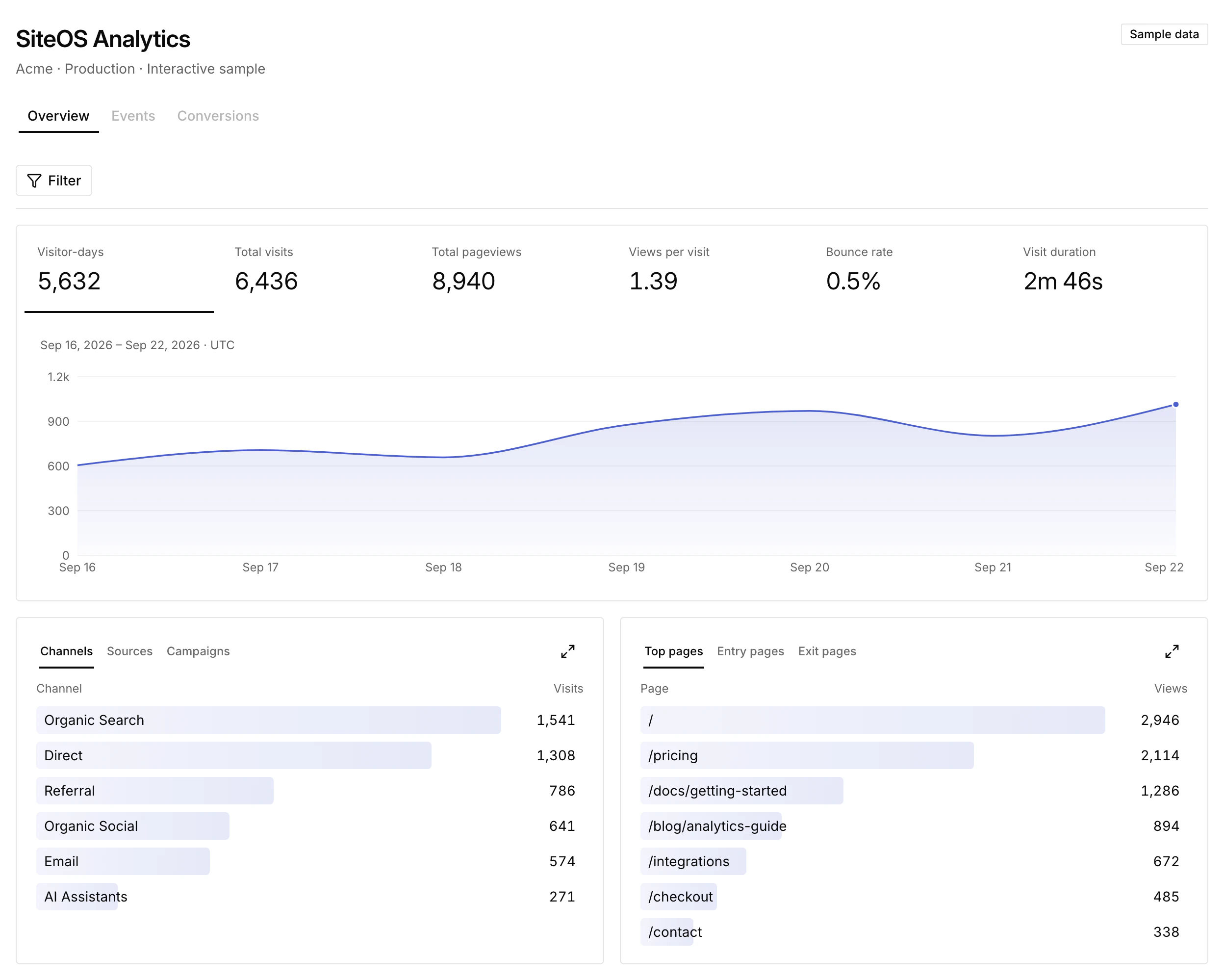
- Overview: visitor-days, visits, pageviews, views per visit, bounce rate and visit duration, compared with the previous period by default. Cards break traffic down by channel, source and campaign, top, entry and exit pages, device, browser, operating system, country, region and city, plus events, goals and funnels. Choose Realtime from the period menu for the last 30 minutes: a live map of visitor locations, active visitors, traffic per minute and the latest pageviews with their page and approximate location.
- Events, Conversions and Campaigns: the event catalog, goals, ordered funnels and registered UTM campaigns.
- Locations: every country, region and city with visits, beside a globe that turns to the location you point at.
- Visitors: returning-browser retention, available after you enable visitor recognition.
- People: accounts and contacts confirmed through a separate identity setup. Only Organization owners and admins can open it.
Google Analytics reads your connected GA4 property. Explore its traffic, events, funnels and retention cohorts, save report definitions and export the displayed data. Connecting Google does not install or enable native SiteOS collection. Follow Connect Google Analytics.
Choose the source and date range before reading a report. Google and SiteOS keep their own metric definitions, time zones and reporting windows; their totals are not merged.
Set up native collection
- Open the intended Project and environment, then Analytics → Set up SiteOS Analytics. This explicit action enables native collection; opening Analytics alone does not. Install with AI copies a setup prompt for your agent instead.
- Review the measurement and consent settings. Cookieless collection does not require visitor recognition, People or SiteOS Cookie.
- Install the generated script or supported GTM adapter once. Use the configuration for this environment and avoid installing both versions on the same website.
- Visit an allowed website with the intended consent state and confirm accepted activity in Realtime. The script handles initial pageviews and supported single-page navigation.
Overview keeps the installation card visible until the first accepted event, including after a reload. Once connected, Explore Analytics opens the reports; it does not grant visitor permission. Reopening the installation guide does not resume manually paused collection.
For several websites, add their exact origins under Settings → Domains and install the same environment's collector on each. The Multiple websites guide explains combined reports and optional cross-domain visit continuity.
Measure useful actions
Register events for outcomes such as an accepted signup or completed purchase, then instrument the actual success callback. Add declared List or Text properties when you need to compare public product labels, categories or plans. Define goals and funnels after their underlying pages and events are arriving.
See Events, goals and funnels for event properties, campaign attribution, report filters and conversion setup. An installed script or a button click alone does not establish a completed conversion.
Explore countries, regions and cities
The geography card shows visits in Countries, Regions and Cities tabs. Select a location to filter the reports, or open Locations to search the full list. Selecting a country there filters every report and shows its regions; a region then shows its cities. After filtering by country, the regions, cities and full-list search show only that country’s traffic. Unknown then means the location was unavailable within the selected country.
Locations are approximate network locations recorded when a visit begins. VPNs and mobile networks can report a different location, and older visits may have no region or city. SiteOS does not request GPS access. Geography is available for independently permitted cookieless measurement as well as consent-controlled website measurement; a minimal page counter has no geography. Select a location and open Conversions to inspect its goals and funnels.
Decide how consent applies
Cookieless measurement, returning-browser recognition and confirmed People have different data requirements. Control collection through a published SiteOS Cookie integration or a supported external consent manager when needed. Global Privacy Control, Do Not Track and explicit full opt-out stop collection.
Read Measurement and consent before enabling recognition or changing retention. Attaching Cookie to a Project or saving a banner draft does not activate a published consent integration.
Identify accounts or submitted contacts
People connects an account your website has authenticated, or a contact from a form it has accepted, after separate permission. Your trusted backend confirms the identity. Browser recognition cannot discover an email address, and earlier anonymous activity is not assigned to a person retroactively.
Follow Set up People for policy review, backend signing, script/GTM configuration and verification.
Keep your own traffic out
Open Settings → Traffic exclusions and choose Check my browser to exclude, or include again, the browser you use for everyday checks. The preference is confirmed on the measured website and saved there, so it applies only to that website and browser. It does not change consent or remove earlier statistics.
For automated tests, set window.SiteOSAnalyticsDisabled = true before the page loads; the script then sends no requests. Known crawler and monitoring user agents are excluded automatically, but unknown bots can still be counted.
Export reports
GA4 event, campaign, funnel and retention reports offer Export CSV. The file uses the displayed report snapshot and includes its dates, time zone, freshness and limitations. Exporting does not run a fresh Google query. See Google reports and CSV exports.
For structured aggregate data, the CLI can return native and Google reports as JSON with --json. Use the selected Project, environment and supported filters; this is programmatic report access rather than a complete raw-event database export. People has a separate, restricted profile export for Organization owners and admins.
Work with your agent
The SiteOS agent integration gives your agent native and connected Google aggregate reports, realtime activity and Project context through read-only MCP. The CLI also supports setup, event catalogs, campaigns, goals, funnels, domains and measurement settings. Select the intended Project and environment before running commands. Private People records are not exposed through aggregate CLI/MCP reporting.
In the dashboard, Install with AI, Set up events with AI and Create goals with AI or Create funnels with AI copy a prompt with the selected Project and environment. Copying a prompt changes nothing; your agent still inspects the website and existing measurements before creating definitions.
If reports are empty
Check the selected source and environment first. For native collection, the header shows Collecting, Waiting for events or Collection paused. Inspect the allowed website origin, installation, consent or opt-out state, traffic exclusions and the last event received; Settings → Check for events reads it again. For Google, check the property and web stream, connection access, date range and freshness notice.
Trace can help inspect delivery, but its observations never supply Analytics counts. Google Search Console uses its separate property connection; search-dialog queries and clicks belong to Search analytics.