Issues and rules
Investigate grouped findings, publish useful expectations and distinguish recovery from manual closure.
Start from Overview or Issues and select the affected provider, event or Google change. Keep the environment and evidence period in view while investigating.
Follow an issue
Each issue is named in one plain sentence, such as “purchase reaches Meta Pixel without currency”, with the rule name beneath it. Selecting an issue opens its sheet:
- Read the summary, impact facts and when it was first and last found. The summary uses only numbers from the saved finding.
- Review the affected event’s observations over the period, with the first finding and nearby changes marked on the chart.
- Check Changed around the same time: Tag Manager and Trace collection changes from 24 hours before the issue was first found until its last finding. Use Compare versions for a GTM publication. A change close in time does not prove the cause.
- Follow What to do, then open the evidence and page timeline to compare the expected behavior with what was observed. Check coverage, consent, request outcomes and relevant Google changes.
- Fix the implementation or review an intentional change, then inspect fresh evidence.
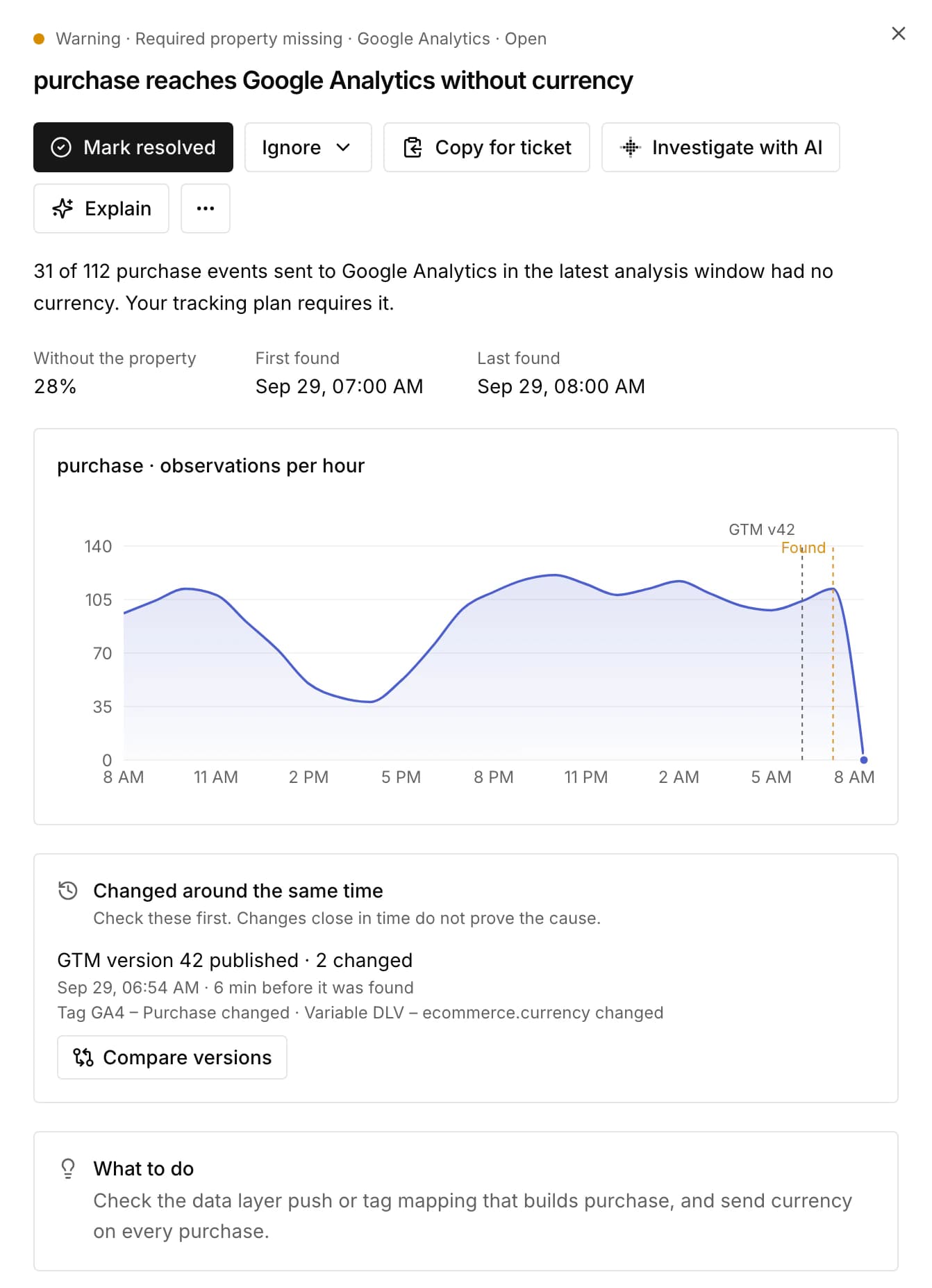
Copy for ticket copies the headline, summary, impact facts, dates, next step and issue link for your tracker. The investigation keeps retained findings and the published expectation separate. The Changes page lists 30 days of changes with the issues first found within 6 hours of each.
Use Explorer for event/property inventory and browser activity. Its service filter lists services With events first; services Observed without event names, such as requests, pixels or unrecognized domains, open Browser activity instead. Event details chart the event’s observations over the period. In Browser activity, the Service filter covers every observed service and source.
An event and its request outcome are one operation, not two business events. Repeated SDK loading, repeated GTM callbacks and possible duplicate events are different findings; close timing alone does not prove double counting.
Automatic checks
With sufficient compatible evidence, Trace can identify supported request or GTM execution failures, possible duplicate events and changes to learned event structure. Learned schemas need enough historical traffic; learning or incomplete coverage is not a healthy verdict.
Request and GTM execution failures show Observed impact: how many observed results failed in the latest assessed window, with successful and unknown results and the pages with failures. Counts describe observed browser results, not all visitors or lost conversions, and unknown results are neither successes nor failures. An issue becomes critical only when recent failures are frequent in that sample; a small sample stays a warning.
Key event delivery dropped watches each service’s share of a key data-layer event, such as purchase, generate_lead or add_to_cart. It compares the last 24 hours with the service’s own share over the previous 7 days, for example “Fewer purchase events reach Meta Pixel than usual”. It needs at least 20 key events in the day, 100 in the week and a usual share of 50% or more. It opens when the share falls below 70% of usual, becomes critical below 25%, and resolves when the share returns. Shares come from sampled observations, not conversions, so a steady consent or blocker rate does not open it.
Personal data sent appears when Personal data checks are on in Settings → Collection (see Consent and privacy). While a visitor allows analytics, the browser looks for an email address or phone number in data-layer parameters, in Google Analytics, Google Ads, HubSpot and Meta Pixel request parameters and in the page address those services receive, for example “Personal data is sent to Google Analytics with sign_up”. Only pages where analytics was allowed count. The issue says whether it found an email address or phone number and where, such as an approved parameter name or the page address, never the value. A service request is critical; the data layer is a warning, because a tag may forward it. The issue resolves after 10 checked pages of that event and service without a finding.
Invalid ecommerce values appears when Ecommerce value checks are on in Settings → Collection. While a visitor allows analytics, the browser checks ecommerce events such as purchase and add_to_cart sent to Google Analytics or Meta Pixel, and data-layer ecommerce objects, for a three-letter currency code with every value, a value that is a number of zero or more, a resolved transaction ID on purchases and refunds, and items. Only the kind of problem leaves the page, for example “purchase reaches Google Analytics with invalid ecommerce values”. A request is a warning and the data layer is informational; the issue resolves after 10 checked pages of that event without a problem.
Google connections add their own findings, including import failures, selected configuration changes and eligible GA4 report drops. These can work without browser installation. See GA4 monitoring.
Add a rule for a real expectation
Rules can describe an expected provider/event, required property names and types, a recurring cadence, a consent purpose or an expected response to a source event.
For example: after the application emits form_success, GA4 should send generate_lead within a reviewed interval. Confirm that relationship in the website code and observations first. A button click or data-layer push alone does not prove the business action succeeded.
Use consent timing only for an event that should follow consent readiness or a new grant itself. Do not apply that deadline to a purchase that might happen much later. A silence rule for a rare conversion can also create misleading findings.
Collection permission and monitoring expectations are separate. In strict mode, a custom event or property must be approved for observation before a rule can evaluate its absence. Hidden pages, navigation, gaps and incomplete evidence can prevent a verdict.
Review and publish
In Tracking rules, edit the draft, review the full set of expectations and publish that version. Saving a draft does not change active monitoring. If another editor changes it, reload and reconcile the new version rather than overwriting it.
Your agent can propose rules from the actual success flow and use the CLI to save and publish reviewed changes. MCP supplies saved evidence and does not publish rules.
Export and import
Export CSV on Events, Properties and Issues saves the list as you filtered it, up to 5,000 rows, with names, counts and dates only. In Tracking rules, Import or export saves the draft as a CSV spreadsheet, JSON Schema or SiteOS JSON. Import reads any of the three, including JSON Schema from other tools, and shows what it would add, change, remove or skip before it saves anything to the draft. Merge updates the events in the file and keeps the rest; Replace keeps only the file's events. Publishing stays a separate review. The CLI has the same trace tracking-plan export and import commands.
Verify recovery
Recovery depends on the check. Request and GTM execution failures need three successful results across at least two page views after the latest failure, including one at least 15 minutes after it. Opaque responses, cancellations and requests rejected during page exit cannot verify recovery. Schema and absence checks need a healthy comparable window; key event delivery needs the share to return; personal data and ecommerce value checks need 10 checked pages without a problem; Google report checks need later eligible reports.
Resolve and snooze are workflow decisions. They do not establish that the website is fixed. Silence, an excluded provider or a changed rule does not verify recovery either. Review the recovery evidence and timestamp before treating a problem as confirmed fixed.
Known intentional GTM changes can be marked expected. That records your review of the specific configuration change without declaring runtime health.